If your plan is missing, a table will not move or a PDF will not open, try the quick fix first. If it does not help, we explain exactly what information to send.
Looking for a place to choose your entrance and first dance songs? See the music planning steps . Wedding, henna and engagement flows are kept separate. Export your DJ notes as text or a PDF from your browser.
If your plan is missing
Check your sharing link first
If you previously used Share to create a link, open that link.
If you have no link, open the device, browser and browser profile where you created the plan.
Plans made in a private browsing tab may not be saved permanently.
Do not clear site data or run cookie-cleaning tools.
A PDF is a fixed output only; keep a sharing link if you want to edit again. That link opens the plan as it was when created.
Important: Do not attach your guest list to a support message. Cover names in screenshots; the affected screen, last action, device and browser are enough.
Table layout editor
Moving, resizing and deleting
The editor accounts for tables and chairs together. A gap that looks small on screen may not be enough in the real venue.
Tip: Check the space around the chairs before releasing the table.
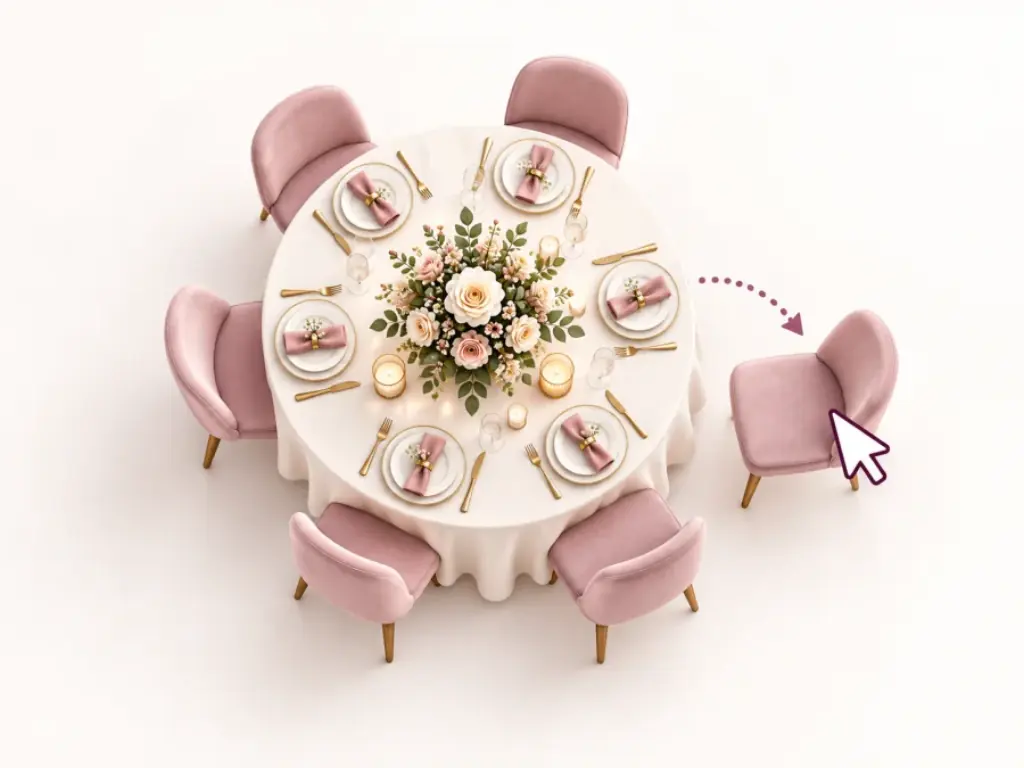
Move the table or chair towards an empty area.
The table returns to its original position
The new position overlaps another table, chair or area. Zoom out and drop the table where there is more room around it.
Resizing a table
Select the item and drag its corner handle. Increasing a tabletop also expands its chair footprint, so check the distance from neighbouring tables again.
Deleting an item
Selecting a table or area reveals a red bin at its top right. Check you selected the right item before deleting. To keep an editable copy, save a current link using Share first; a PDF is only an output.
Entrance and event areas
Select and move the entrance, stage, dance floor, henna area or presentation area. Use “Add entrance” in the toolbar to create a second entrance.
Guests and chairs
Seating guests at tables
1Select the tableClick once on the table you want to edit.
2Enter the nameIn the Guests section of the left panel, add a name to an empty chair.
3Select the sidePink means the bride's side, blue the groom's side, and a two-colour chair a shared guest.
4Check capacityThe plus and minus buttons redistribute chairs around the table.
I cannot add a name to a table
First select the table in the editor. Find Guests in the left panel on a computer or the bottom panel on a phone, then enter a name for an empty chair. If the table has no free chairs, increase its capacity or choose another table.
What do chair colours mean?
Grey chairs are empty. A chair with a name but no side selected is dark pink. Pink means the bride's side, blue the groom's side, and pink-blue a shared guest. The table's occupancy count updates too.
PDFs and sharing
Save your plan or continue on another device
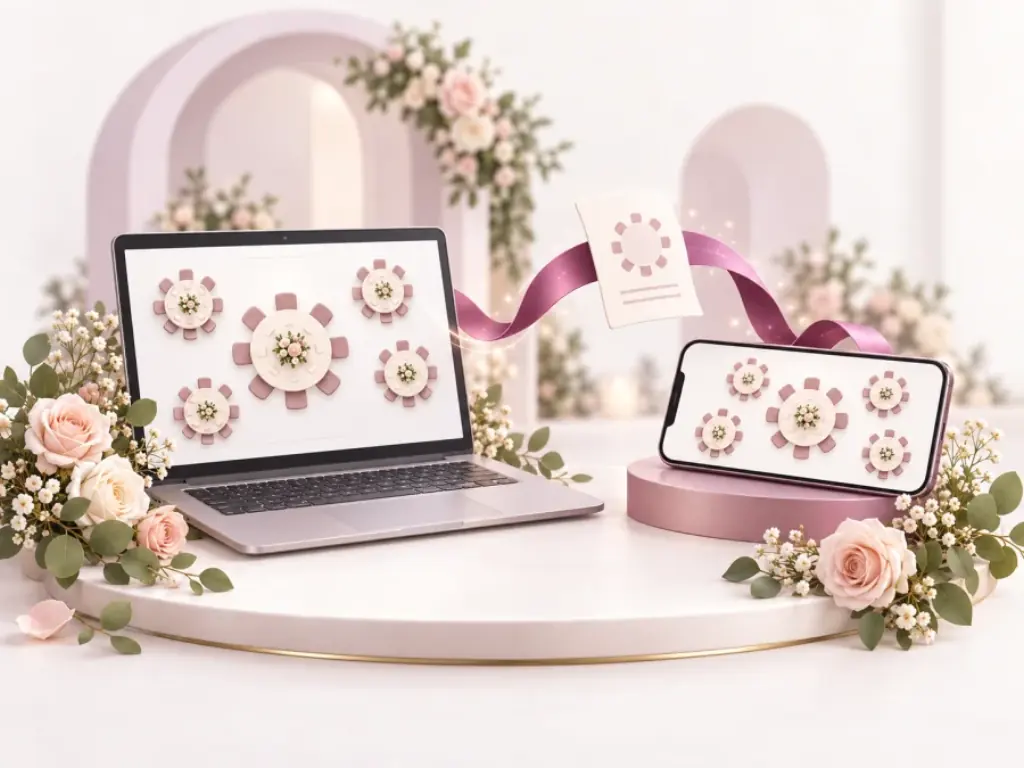
A PDF is a fixed output. A sharing link lets you open and edit the table layout and guest details in another browser, as they were when the link was created.
Reminder: Create a new sharing link after your final changes.
A sharing link transfers the plan as it stands to another device.
1
To continue on another device, use Share button.
2
Share the copied link only with people you want to see the plan.
3
For a fixed output, use Download PDF and choose Save as PDF as the destination.
4
If your plan changes, create a new link or PDF containing the updated version.
Do sharing links update changes automatically?
No. A link contains the plan as it was when created. If you change tables or names later, press Share again and send the new link.
The PDF window does not open
Check your browser's pop-up and print permissions. On a mobile browser, the same action may be called Share, Print or Save as PDF. Press once and wait for the window rather than pressing repeatedly.
My latest changes are missing from the PDF
Return to the editor and check that the name or table position has actually changed. Close the old print window and press Download PDF again; an already-open preview does not update automatically.
Phones and tablets
Create your plan with your phone held upright
The same plan, simpler controls on a small screen
You do not need to rotate your phone. Choose an event, enter venue dimensions and adjust the table count. Use the fixed button at the bottom to continue; your choices and information are preserved.
Tap a table in the editor or use Table and event settings button. Edit names and side/group selections in the panel that opens from the bottom. Pan across an empty area to reach other parts of the plan; drag tables to move them.
Tablets and computers keep the wide-screen layout. Before changing devices, Share to create an up-to-date link.
Quick answers
Frequently asked questions
Can I open my plan on another device?
Yes. In the editor, Share and open the copied link on the other device. It contains your plan up to that moment; share a new link after later changes.
Why does the number of tables change automatically?
Changing the guest count or guests per table in the Layout step recalculates the table count, rounding up. For example, 200 guests at 10 per table gives 20 tables. You can then increase or decrease that number manually. Your chosen count stays unchanged until you change either of the two source values. Explore the table-count calculation method.
Can I change the number of tables or chairs later?
Yes. Return to the Layout step to change the table count and guests per table. You can also adjust the capacity of a selected table in the editor.
Why can tables not overlap?
The editor preserves the space around chairs as well as the tabletop. An invalid drag returns an item to its last valid position; zoom out and move it into a larger gap.
Will clearing browser data delete my plan?
Yes. Your plan and guest names are stored in the browser you use. Save an up-to-date sharing link before clearing site data. You can also download a PDF, but a PDF cannot restore an editable plan.
Is Düğün Masam free?
You can create plans, edit tables, make sharing links and export PDFs without an account.
Planning support
Looking for planning guidance rather than troubleshooting?
You do not need to include guest names in a support email. To preserve your plan before deleting it, save a sharing link. A PDF is only an output; a deleted local record cannot be recovered from the browser.